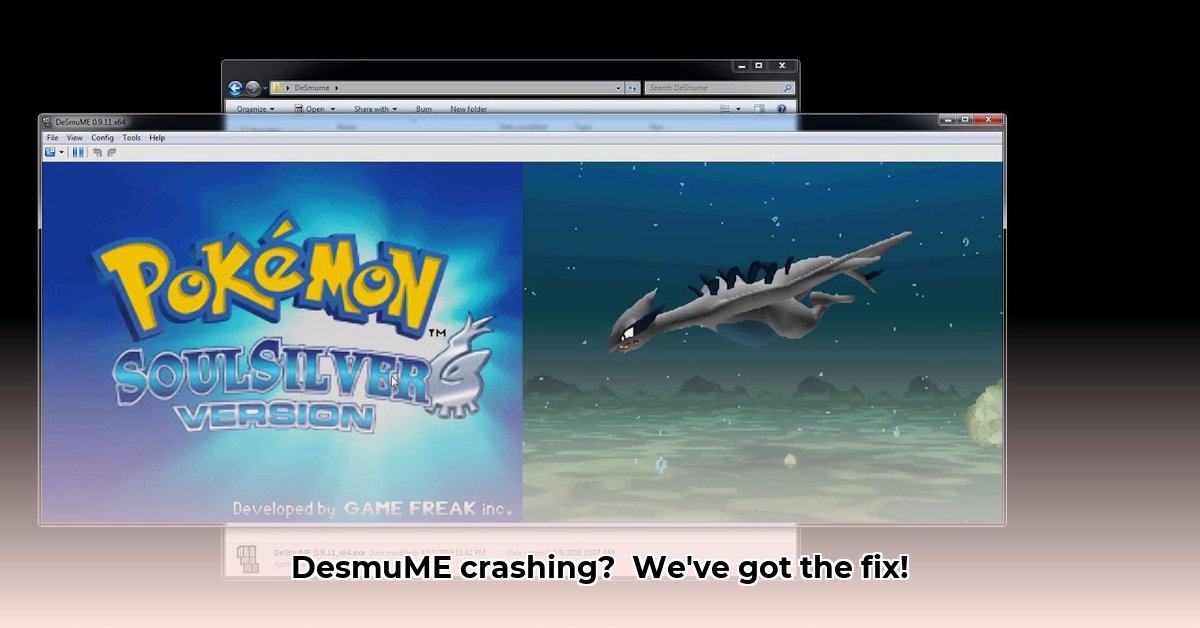
DesmuME not launching? Seeing error messages or a black screen instead of your favorite Nintendo DS games? This guide provides step-by-step solutions to common DesmuME problems, focusing on fixing missing DLL errors and compatibility issues. Whether you're experiencing a blank screen, error messages, or simply can't get DesmuME started, we'll help you get back to gaming.
Missing DLL Files: A Common Problem
The most frequent culprit behind DesmuME malfunctions is missing or corrupted "Visual C++ Redistributable packages." These are essential supporting files that DesmuME requires. If they're missing or damaged, you'll likely encounter error messages mentioning files like MSVCP100.dll or VCRUNTIME140_1.dll.
Step 1: Identify Your System Architecture (32-bit or 64-bit)
Determining whether your system is 32-bit or 64-bit is crucial for downloading the correct Redistributable package. In Windows 10, search for "System Information" to find this detail. Other Windows versions offer similar system information displays.
Step 2: Download the Correct Visual C++ Redistributable Package
Download the appropriate Visual C++ Redistributable package from the official Microsoft website. Critically, ensure you download the version matching your system architecture (32-bit or 64-bit). Downloading the wrong version won't solve the problem.
Step 3: Install the Package
Run the downloaded installer and follow the on-screen instructions. The installation should be straightforward.
Step 4: Restart Your Computer
Restart your computer after installation to ensure all changes take effect. Now, try running DesmuME again.
Troubleshooting Further Issues
If installing the Redistributables didn't resolve the problem, let's explore additional troubleshooting steps:
1. Verify Your DesmuME Version: Outdated versions can have compatibility problems. Check for updates on a reliable DesmuME source and install the latest version if necessary.
2. Test Your ROM: The issue could stem from the game ROM file itself. Try a different ROM to isolate whether the problem lies with the game or DesmuME.
3. Run the System File Checker (SFC): Windows's SFC tool can detect and repair damaged system files. Open an elevated command prompt (search for "cmd," right-click, and select "Run as administrator"), type sfc /scannow, and press Enter. Allow the process to complete.
4. Perform a Clean Reinstall: A fresh DesmuME installation might be necessary. Remember to back up essential save files before proceeding.
Preventative Measures
Prevent future DesmuME issues by following these best practices:
- Download from Reputable Sources: Only download DesmuME and ROMs from trusted websites to avoid malware.
- Keep DesmuME Updated: Regularly check for updates to benefit from bug fixes and improvements.
- Maintain System Updates: Keep your operating system and software up-to-date.
- Back Up Your Saves: Regularly back up your game saves to prevent data loss.
Troubleshooting Table: Quick Reference Guide
| Problem | Possible Causes | Solutions |
|---|---|---|
| DesmuME not launching | Missing or corrupted Visual C++ Redistributables | Install the correct (32-bit or 64-bit) version. |
| DLL error messages | Damaged system files, incorrect Redistributables | Run SFC, reinstall Redistributables, or clean reinstall. |
| Emulator crashes | Outdated DesmuME, outdated graphics drivers | Update DesmuME and graphics drivers. |
| ROM loading failure | Corrupted ROM file | Try a different ROM or redownload the problematic one. |
Addressing DesmuME 0.9.11 VCREDIST Errors on Windows 10
Many Windows 10 users experience issues with DesmuME 0.9.11 related to missing or corrupted Visual C++ Redistributable packages, often manifesting as "msvcr100.dll is missing" errors. Avoid manually replacing DLL files—this is risky and may cause further problems.
The Solution: Install or reinstall the correct Visual C++ 2010 SP1 Redistributable package, following the steps outlined in the section above ("Missing DLL Files: A Common Problem"). Remember to choose the 32-bit or 64-bit version according to your system configuration.
If problems persist after trying these solutions, consider a clean reinstall of DesmuME, check for software conflicts, or, as a last resort, perform a system restore or reinstall. Online DesmuME communities can also offer further assistance.
⭐⭐⭐⭐☆ (4.8)
Download via Link 1
Download via Link 2
Last updated: Thursday, May 01, 2025